
How to Use HelpLook with CrafterQ: Setup & Workflow
How to Use HelpLook with CrafterQ: Setup & Workflow
Your help center holds the answers. Your website visitors still leave without finding them. HelpLook and CrafterQ close that gap: HelpLook builds and maintains the source of truth, and CrafterQ turns it into a conversational agent that answers visitors on your site. This article explains how the two tools fit together, how to set them up, and what the combination solves.
Why combine HelpLook and CrafterQ?
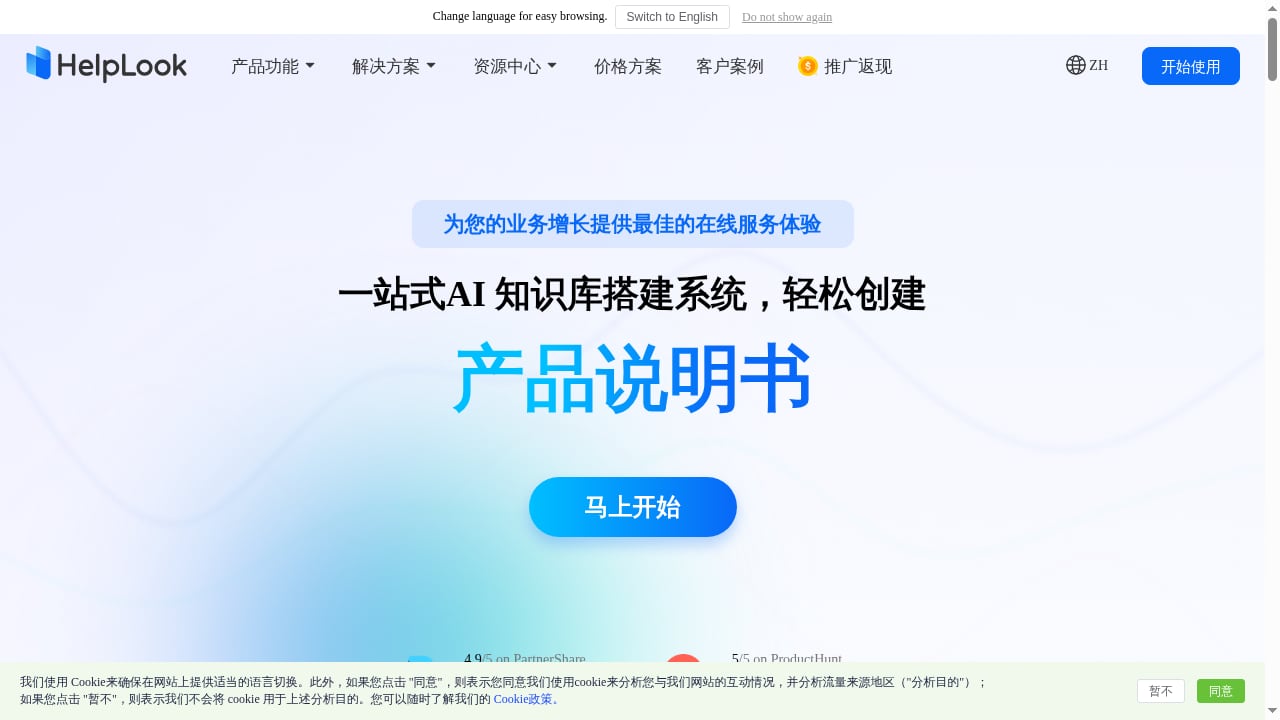
First viewport screenshot of www.helplook.net.
HelpLook is an AI knowledge base and help center platform. You write and organize articles in a WYSIWYG editor, publish them to a public or private portal, and embed them on your site with a widget. It also offers AI search and chatbots powered by GPT-3.5/4.0 and Wenxin Yiyan.
CrafterQ is an AI website agent platform. It trains an agent on your content—website pages, documentation, FAQs, PDFs, and custom Q&A pairs—then deploys it to your site with a script. The agent answers questions, guides visitors, captures leads, and can take actions like escalating to a human.
Used together, HelpLook is where knowledge is authored and governed; CrafterQ is where that knowledge meets visitors in conversation. The split matters because help content changes constantly. When the source is well structured, the agent stays accurate without constant retraining.
How the two tools divide the work
| Layer | HelpLook | CrafterQ |
|---|---|---|
| Content authoring | WYSIWYG editor, AI-assisted writing, versioned articles | Not an authoring tool |
| Knowledge structure | Categories, portals, public/private access | Trains on URLs, files, and Q&A pairs |
| Visitor-facing experience | Embedded help center widget, AI search, chatbot | Conversational agent on the website |
| Actions | Search and self-service reading | Lead capture, human escalation, agent actions |
| Analytics | Content and search performance | Chat logs, usage, feedback, geographic distribution |
A simple rule: if a fact needs an owner, a review cycle, and an audit trail, it belongs in HelpLook. If it needs to be said out loud to a visitor in context, CrafterQ should say it.
Prerequisites
Before you start, confirm you have:
- A HelpLook workspace with at least a starter set of published articles (10–20 is enough to test).
- Admin access to your website's code or tag manager for the CrafterQ embed script.
- A CrafterQ account. The free plan is enough to build and test an agent; paid tiers (Solo at 29/month, Team at 99/month) add message and storage headroom.
- A decision on which HelpLook content is public. Private internal knowledge should not be fed to a public-facing agent.
Step-by-step setup
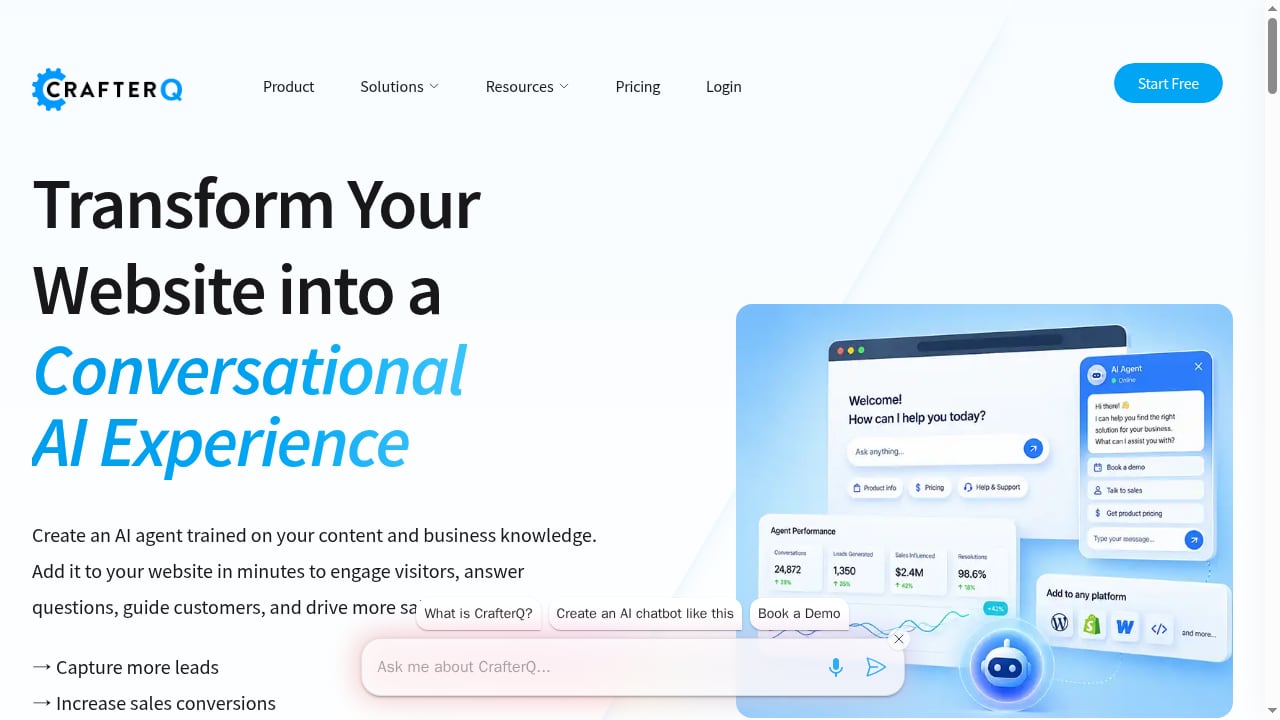
First viewport screenshot of crafterq.ai.
Step 1: Prepare the HelpLook source content
Start in HelpLook, not CrafterQ. The agent is only as good as the pages it reads.
- Group articles by visitor intent—billing, setup, troubleshooting, returns—rather than by internal team.
- Give every article a clear title that matches how customers phrase questions. "Why was I charged twice?" outperforms "Billing discrepancy policy."
- Add a short summary at the top of each article. Agents retrieve passages, and a clean summary improves retrieval quality.
- Remove or unpublish drafts, internal notes, and outdated versions before connecting anything.
- If you plan to expose only part of the help center, confirm which portal or category is public.
Step 2: Connect HelpLook content to CrafterQ
In CrafterQ, open the AI Agents workspace and create an agent. Add sources:
- Website URL: point CrafterQ at your public HelpLook portal or help center domain so it can crawl published articles.
- File uploads: export key HelpLook articles as PDF or text if you prefer a fixed snapshot.
- Custom Q&A pairs: add the highest-volume questions from your support inbox, with answers that match HelpLook wording exactly.
If you maintain a large help center, start with your top 30 articles by traffic. A focused agent is easier to evaluate than one trained on everything at once.
Step 3: Test in the Playground
CrafterQ's Playground lets you chat with the agent before it goes live. Run a realistic test set:
- Ask the five questions your support team answers most often.
- Ask a question whose answer spans two HelpLook articles.
- Ask something the help center does not cover, and check that the agent says so rather than inventing an answer.
- Ask a pricing or policy question where a wrong answer would be costly.
Log every weak answer. Most fixes belong in HelpLook—a missing article, an ambiguous heading, an outdated policy—not in the agent settings.
Step 4: Configure actions and guardrails
Decide what the agent should do beyond answering:
- Lead capture: collect email or contact details when a visitor asks about pricing, demos, or enterprise plans.
- Human escalation: route complex or sensitive questions to support instead of guessing.
- Scope limits: tell the agent which topics it should decline, such as legal advice or account-specific data.
Step 5: Deploy to your website
CrafterQ provides a script to embed the agent on any site. Place it sitewide or only on high-intent pages—pricing, product, and documentation pages usually justify it most. Keep the HelpLook widget available as a secondary path for visitors who prefer reading.
Step 6: Review, retrain, and maintain
After launch, check CrafterQ's chat logs and feedback ratings weekly. When you see a recurring gap:
- Write or update the article in HelpLook.
- Republish it.
- Retrain the CrafterQ source so the agent picks up the change.
CrafterQ supports automatic retraining, which reduces the manual step, but a monthly content review in HelpLook is still worth keeping.
Practical examples
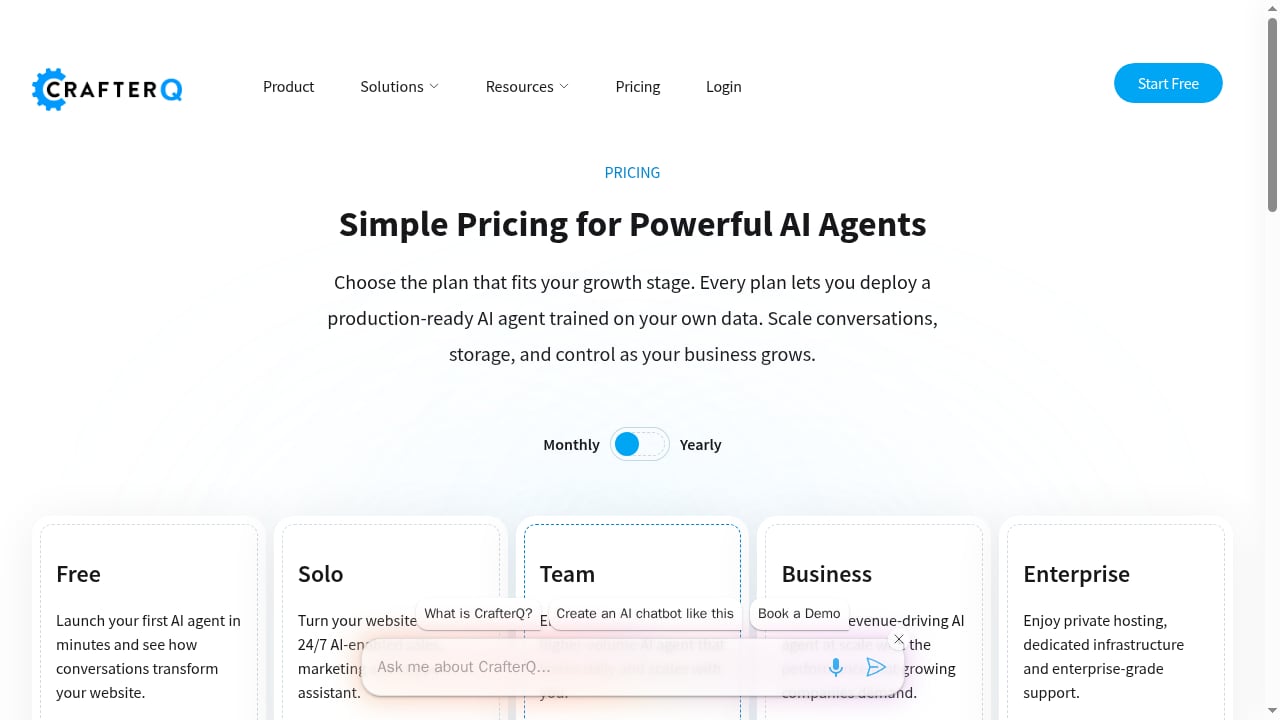
First viewport screenshot of crafterq.ai.
SaaS onboarding. A visitor on your pricing page asks whether SSO is included. The CrafterQ agent answers from your HelpLook plan-comparison article, then offers to capture an email for a sales follow-up. The visitor never leaves the page.
E-commerce product discovery. A shopper asks whether a jacket is waterproof. The agent pulls the answer from a HelpLook product manual, links the relevant article, and recommends the matching product page.
Regulated industries. A healthcare or finance site uses HelpLook to keep policy language controlled and reviewed, while CrafterQ handles first-contact questions and escalates anything that touches personal or regulated advice.
Internal support. Point CrafterQ at a private HelpLook knowledge base for an employee-facing agent that answers HR and IT questions, with escalation to a human for exceptions.
What the combination solves
- Content exists but is not found. Visitors get answers in conversation instead of hunting through categories.
- Two sources of truth. HelpLook becomes the single place where answers are edited; the agent stops drifting from official policy.
- Support volume. Routine questions are deflected, and the ones that reach humans arrive with context.
- Lead leakage. Visitors with buying intent get a next step instead of a dead end.
- Maintenance overhead. Updating one article updates the agent's knowledge, rather than rewriting chatbot flows.
When this pairing is not the right fit
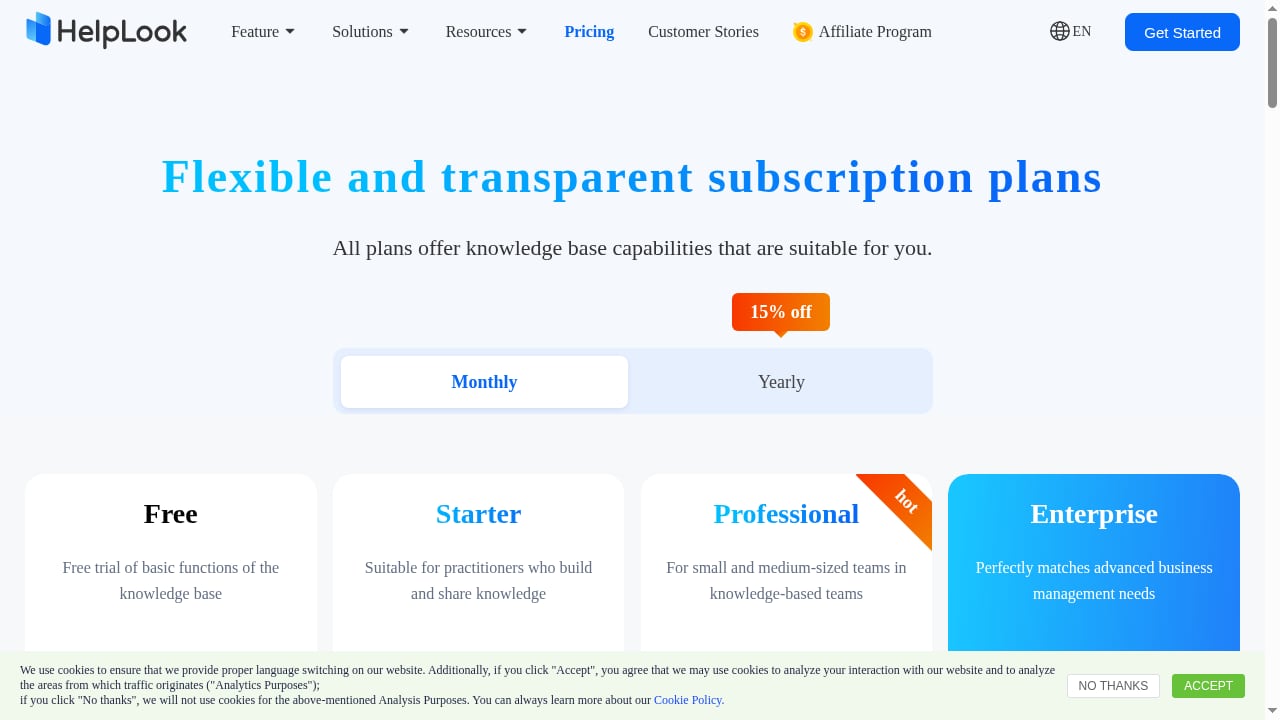
First viewport screenshot of www.helplook.com.
If you have no structured help content and no plan to build it, start with HelpLook alone—its AI search and chatbot may be enough. If you already run a mature agent platform and only need a knowledge base, compare options before adding a second conversational layer. For teams weighing broader support stacks, see our comparisons of HelpLook vs Botpress vs TeamSupport and HelpLook vs ProProfs.
Related reading
- Slite Review 2026: AI Knowledge Base Pros, Cons & Fit - Evidence-based Slite review: ideal users, use cases, strengths, limitations, pricing signals, setup, and decision criteria for AI knowledge base software.
- Compliance Administrator: Role, Duties & Knowledge Base - Learn what a compliance administrator does, how the role differs from full admin access, and how an AI knowledge base keeps compliance evidence and answers audit-ready.
FAQ
Do I need to duplicate content in both tools?
No. Author in HelpLook and let CrafterQ read from the published portal or uploaded exports. Duplicating content creates drift.
Will CrafterQ use my private HelpLook articles?
Only if you connect them. Keep internal-only knowledge out of public-facing agent sources, or use a separate private agent.
How often should I retrain?
Retrain after any material policy or pricing change. Otherwise, a monthly review plus automatic retraining is usually sufficient.
Can I run the HelpLook widget and the CrafterQ agent on the same site?
Yes, and it is often sensible: the agent handles quick questions, while the widget serves visitors who want to browse or read in depth.
What does it cost to start?
HelpLook has a free tier and paid plans from ¥99/month. CrafterQ has a free plan, with Solo at 29/month and Team at 99/month.
How do I know the agent is working?
Track deflection rate, escalation quality, captured leads, and feedback ratings in CrafterQ, alongside search and article performance in HelpLook. For a broader view of AI support options, see our AI support comparison and the top help authoring tools.
Conclusion
HelpLook and CrafterQ solve different halves of the same problem. HelpLook gives you a governed, well-structured knowledge base; CrafterQ turns it into a conversation on your website. Set up the content first, connect and test it second, and keep the maintenance loop tight. For a parallel workflow that automates ticket handling, see how to use HelpLook with CoSupport AI.
Sources
;}.cls-2{fill:%230868f7;}.cls-3{fill:url(%23未命名的渐变_44);}.cls-4{fill:%23333;}%3c/style%3e%3clinearGradient%20id='未命名的渐变_8'%20x1='33.73'%20y1='100.61'%20x2='-0.03'%20y2='-1.06'%20gradientUnits='userSpaceOnUse'%3e%3cstop%20offset='0'%20stop-color='%237ae9fb'/%3e%3cstop%20offset='0.67'%20stop-color='%232b90f8'/%3e%3cstop%20offset='1'%20stop-color='%230868f7'/%3e%3c/linearGradient%3e%3clinearGradient%20id='未命名的渐变_44'%20x1='27.86'%20y1='18.67'%20x2='68.36'%20y2='22.22'%20gradientUnits='userSpaceOnUse'%3e%3cstop%20offset='0'%20stop-color='%235ac7f2'/%3e%3cstop%20offset='1'%20stop-color='%230868f7'/%3e%3c/linearGradient%3e%3c/defs%3e%3cpath%20class='cls-1'%20d='M29,28.74V81.91l-9.51-3.68v0L8.52,74A7.17,7.17,0,0,1,4,67.32V24.54A3.76,3.76,0,0,1,9.08,21Z'/%3e%3cpath%20class='cls-2'%20d='M68.09,78.07a13.15,13.15,0,0,1-17.9,12.06L29,81.91h0V28.74L50.19,37A13.17,13.17,0,0,0,68.08,25.3h0Z'/%3e%3cpath%20class='cls-3'%20d='M68.08,25.3a13.19,13.19,0,0,1-6.73,10.87A13.09,13.09,0,0,1,50.19,37L29,28.74V6A3.76,3.76,0,0,1,34.1,2.52l25.59,9.91A13.22,13.22,0,0,1,68.08,25.3Z'/%3e%3cpath%20class='cls-4'%20d='M129.06,81.76a4.33,4.33,0,0,1-3.19-1.31,4.4,4.4,0,0,1-1.31-3.24V56.86H97.65V77.21a4.36,4.36,0,0,1-1.35,3.2A4.68,4.68,0,0,1,93,81.76a4.32,4.32,0,0,1-3.19-1.31,4.37,4.37,0,0,1-1.32-3.24V27.27A4.58,4.58,0,0,1,89.83,24a4.59,4.59,0,0,1,7.82,3.27V48.15h26.91V27.27A4.58,4.58,0,0,1,125.91,24a4.59,4.59,0,0,1,7.82,3.27V77.21a4.37,4.37,0,0,1-1.36,3.2A4.65,4.65,0,0,1,129.06,81.76Z'/%3e%3cpath%20class='cls-4'%20d='M163.77,81.66c-6.57,0-11.76-1.92-15.44-5.7s-5.54-9.07-5.54-15.74a26.76,26.76,0,0,1,2.09-10.43,17.72,17.72,0,0,1,6.67-8.06,19.15,19.15,0,0,1,10.68-2.95,19,19,0,0,1,10.46,2.8,18.7,18.7,0,0,1,6.55,7.36,22.53,22.53,0,0,1,2.36,10.28A4.51,4.51,0,0,1,177,63.77H152.23a10.8,10.8,0,0,0,3.49,6.65c2,1.68,4.88,2.52,8.66,2.52a22.25,22.25,0,0,0,7.54-1.21c.74-.3,1.55-.67,2.37-1.07a3.75,3.75,0,0,1,1.84-.4,4.09,4.09,0,0,1,3,1.15,4,4,0,0,1,1.12,3,4.38,4.38,0,0,1-2.58,3.82,32.34,32.34,0,0,1-6.36,2.61A28.67,28.67,0,0,1,163.77,81.66ZM172.4,55.9a9.72,9.72,0,0,0-1.63-4.56A9.9,9.9,0,0,0,167,48a10.38,10.38,0,0,0-4.64-1.14,12,12,0,0,0-4.77,1.06,9.54,9.54,0,0,0-4.89,5.66,11.78,11.78,0,0,0-.51,2.3Z'/%3e%3cpath%20class='cls-4'%20d='M193,81.64a4.49,4.49,0,0,1-4.51-4.55V27.28A4.58,4.58,0,0,1,189.84,24a4.48,4.48,0,0,1,3.28-1.36A4.36,4.36,0,0,1,196.35,24a4.46,4.46,0,0,1,1.31,3.31V77.09a4.34,4.34,0,0,1-1.35,3.2A4.67,4.67,0,0,1,193,81.64Z'/%3e%3cpath%20class='cls-4'%20d='M263.79,81.71a5.7,5.7,0,0,1-4.2-1.74,5.76,5.76,0,0,1-1.73-4.19V27.37a4.58,4.58,0,0,1,1.35-3.27A4.59,4.59,0,0,1,267,27.37V72.53h24a4.58,4.58,0,0,1,3.27,7.82A4.66,4.66,0,0,1,291,81.71Z'/%3e%3cpath%20class='cls-4'%20d='M424.48,81.74a4.71,4.71,0,0,1-2.71-.88,5.43,5.43,0,0,1-1-1l-.07-.09-12.41-17-5.41,5v9.44a4.31,4.31,0,0,1-1.36,3.19,4.66,4.66,0,0,1-3.3,1.36A4.29,4.29,0,0,1,395,80.42a4.36,4.36,0,0,1-1.32-3.23V27.37A4.58,4.58,0,0,1,395,24.1a4.52,4.52,0,0,1,6.58.12,4.54,4.54,0,0,1,1.24,3.15V56.31l17.72-16.38.05,0a4.8,4.8,0,0,1,2.94-1.11,4.4,4.4,0,0,1,3.27,1.2,4.57,4.57,0,0,1,1.2,3.27,4.44,4.44,0,0,1-.77,2.33,7.45,7.45,0,0,1-1.43,1.65l-11,9.64,13.34,17.68a5,5,0,0,1,1,2.71,4.12,4.12,0,0,1-1.36,3.24A4.64,4.64,0,0,1,424.48,81.74Z'/%3e%3cpath%20class='cls-4'%20d='M317.93,81.76a21.5,21.5,0,1,1,21.17-21.5A21.37,21.37,0,0,1,317.93,81.76Zm0-34.1a12.61,12.61,0,1,0,12.42,12.6A12.52,12.52,0,0,0,317.93,47.66Z'/%3e%3cpath%20class='cls-4'%20d='M212.18,101.22a4.12,4.12,0,0,1-3.05-1.26,4.17,4.17,0,0,1-1.26-3.1V43.34a4.37,4.37,0,0,1,1.3-3.14,4.26,4.26,0,0,1,3.13-1.3,4.19,4.19,0,0,1,3.1,1.26,4.32,4.32,0,0,1,1.26,3.16,20.77,20.77,0,0,1,13-4.54,21.51,21.51,0,0,1,0,43,20.51,20.51,0,0,1-13-4.57V96.86a4.15,4.15,0,0,1-1.3,3.06A4.5,4.5,0,0,1,212.18,101.22Zm17.43-53.63c-6.23,0-12.93,4.11-12.93,12.72a12.73,12.73,0,0,0,25.46,0A12.71,12.71,0,0,0,229.61,47.59Z'/%3e%3cpath%20class='cls-4'%20d='M365.76,81.76a21.5,21.5,0,1,1,21.18-21.5A21.37,21.37,0,0,1,365.76,81.76Zm0-34.1a12.61,12.61,0,1,0,12.42,12.6A12.52,12.52,0,0,0,365.76,47.66Z'/%3e%3c/svg%3e)